Features | 1RM calculator & estimated maximum weight
Plan
Choose from 300 exercises and stretches, save a named My Menu, or copy your previous session in one tap.
Record
Log weights, reps and sets, with a rest timer.
Review
See totals, trends and personal bests over time. Choose Standard (Epley) or Conservative (O’Conner) for estimated 1RM. A single-rep record is shown as your 1RM.
Find today’s target weights with the 1RM calculator.
Free on every plan
Estimate your 1RM from weight and reps, then check target weights such as 80%. Review your selection before applying the weight and reps directly to a set.
Illustrative example
Weight100 kg×Reps5 reps
Estimated 1RM116.5 kg
80%92.5 kg × 8 reps
today’s target weights
Up to 12 repsCalculate from weight and reps
100%–60%Reference weights and reps
2.5 kg / 5 lb stepsWeights matched to plates
Choose Standard (Epley) or Conservative (O’Conner) in Settings. 1RM estimates the maximum weight you can lift once. The reference table shows weights from 100% to 60% and general rep targets, such as 8 reps at 80%. Weights use 2.5 kg steps, or 5 lb steps when displaying pounds.
Open it where you need it
01
During a workout
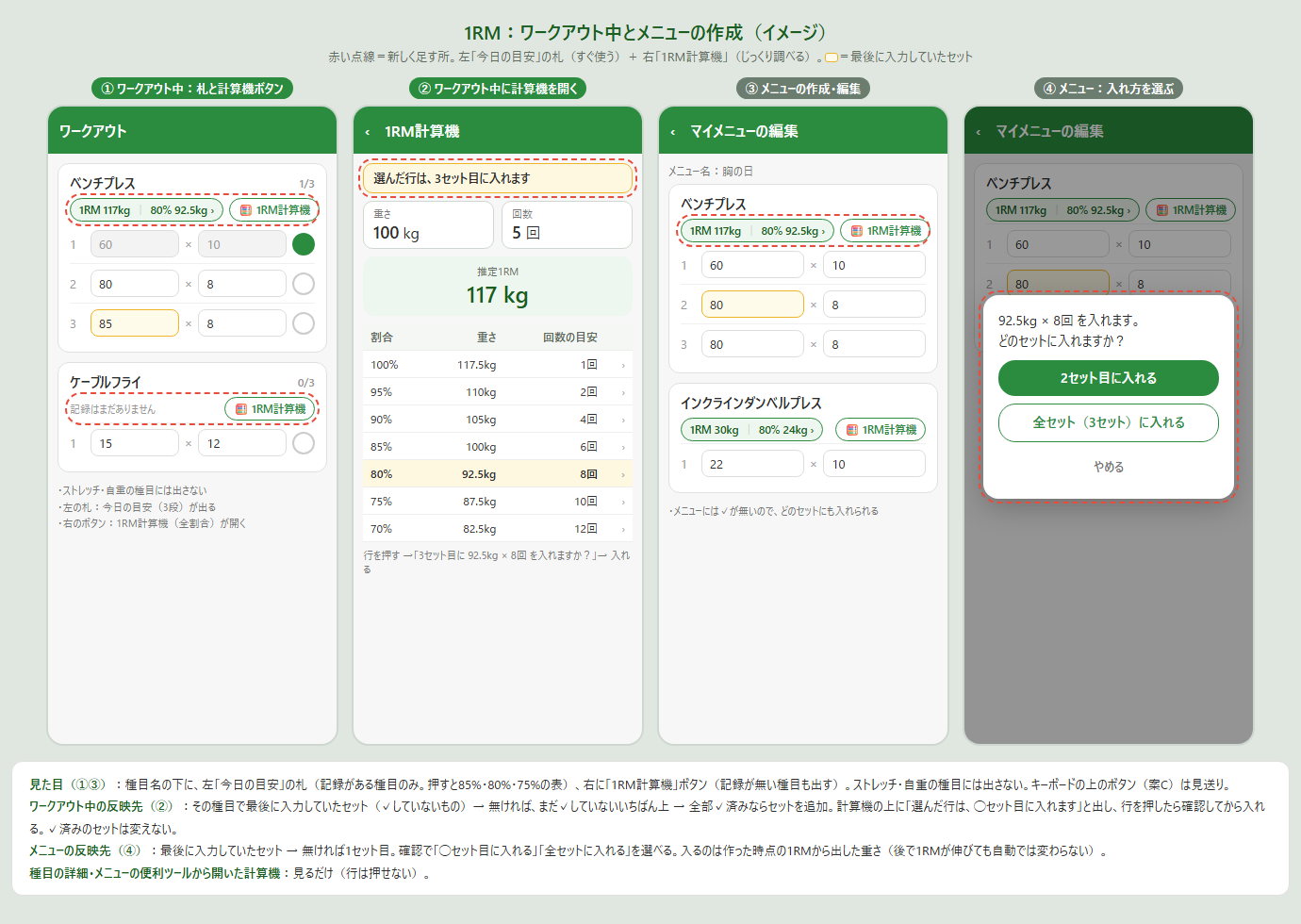
Below the exercise name, see the target badge on the left and the 1RM calculator button on the right.
02
Create or edit a menu
Use the same badge and button to plan weights for your sets.
03
Exercise details
Open the 1RM calculator prefilled with that exercise’s personal-best set.
04
Tools on the Menu screen
Choose Tools > 1RM calculator to use it without selecting an exercise.
From an estimate to your set
During a workout
Tap a reference-table row and confirm to fill the weight and reps into the last set you were editing that is not checked as complete. If no set was edited, the first unchecked set is used. If all sets are complete, a new set is added.
Create or edit a menu
Choose a specific set or apply to all sets.
Temporary illustration of the Japanese app, not an actual screenshot. Details may differ; a final device screenshot will replace it. Enlarge the workflow illustration ↗
Estimated 1RM is not a measured maximum. Rep targets are general estimates and vary between individuals. The displayed maximum is not a recommendation to attempt that lift.
SWITCHING PHONES
Take your workout records to your new phone
Switching phones
Send records from your current phone, then scan the QR code on your new phone. You can also receive them with a 20-digit transfer code.
Receive records within 24 hours. Records on your old phone remain unchanged.
Sending requires a Standard purchase or an active PRO subscription. Receiving requires neither a purchase nor a subscription.
You can send up to 10 MiB per transfer.
Switching phonesYour records, from one phone to the next
01 / Send
GYMemoWorkout records
✓
✓
✓
↑
Current phoneRecords remain on your old phone
Transfer records via the cloudEncrypted temporary storageReceive within 24 hoursQR code or 20-digit transfer code
02 / Receive
GYMemoWorkout records
✓
✓
✓
✓
New phoneReview and import
After receipt is complete or 24 hours pass, records can no longer be received and are deleted from regular storage. They may remain in maintenance backups for a limited time.
Illustration only — not actual app screens.
01
Send
On your current phone, choose “Send to a new phone”.
02
Receive
Scan the QR code on your new phone or enter the 20-digit transfer code.
03
Review and import
Review the contents before importing your records.
Records on the receiving phone will be replaced. Save a copy of any records you need before importing.
Receive within 24 hours. Once received, or after 24 hours, the held records can no longer be received and are deleted from regular storage (they may remain in maintenance backups for a limited time).
Records on your old phone are not deleted.
QR and transfer codes cannot be reused after receipt is complete. If a transfer fails before completion, retry within the validity period.
Do not share your QR or transfer code with anyone.
This is not long-term storage or an automatically updated backup.
Transfer size and what to do if it is too large
If the transfer exceeds the limit, you will be asked whether to exclude AI feedback text. All workout records are still sent when you choose to exclude that text.
If it is still too large, export a file with Create a device backup on your current phone, then import it with Restore from a device backup on your new phone.
Transfers do not send only a selected date range.
Everyday backups and switching phones serve different purposes
For everyday protection, choose Create a device backup and store the file safely yourself. Use Restore from a device backup to import it. Export and CSV export require Standard or PRO; import requires no purchase. Switching phones holds records temporarily for 24 hours to move them to your new phone.
Moving records and restoring purchases are separate steps
If you use Standard or PRO, select Restore Purchases on your new phone using the account used for the purchase in the same store. Purchases can be restored within Google Play or within the App Store, not between them.
You can transfer workout records from Android to iPhone and from iPhone to Android. Moving records and restoring purchases are separate steps. Purchases cannot be restored across different stores.