
01
Open and select
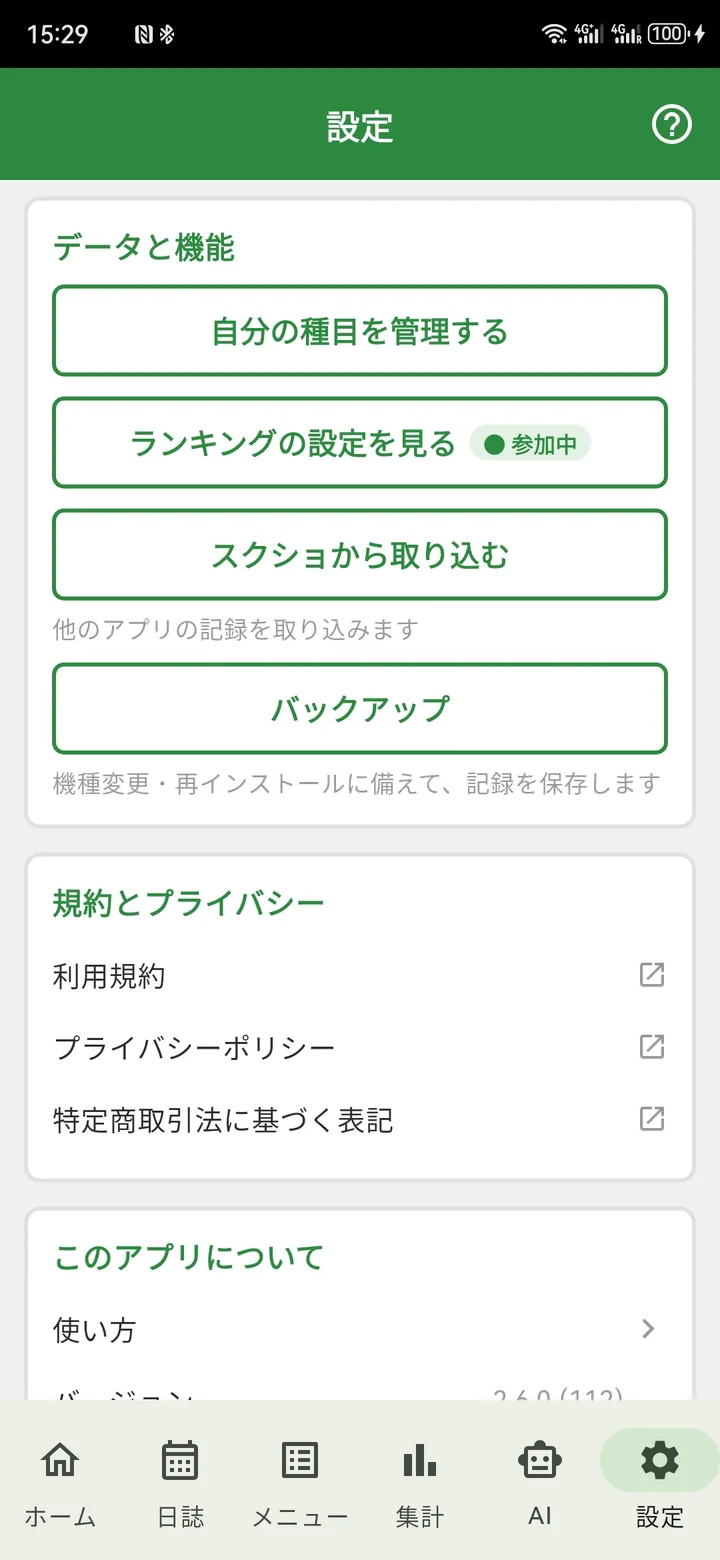
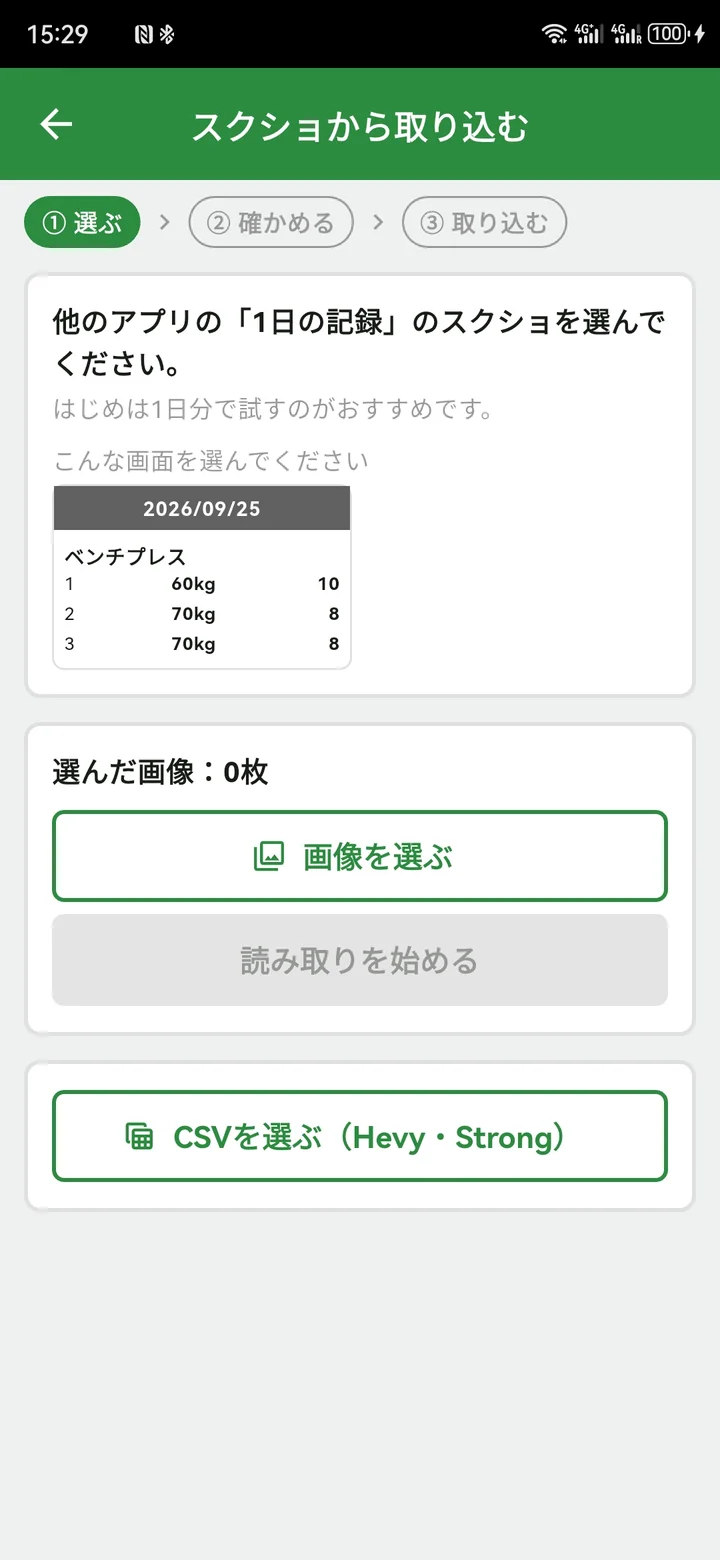
Settings → Data & features → Import from screenshots. Choose images of a daily log including the date.
GYMEMO 2.6.0 / IMPORT
Import past workouts from screenshots of a daily workout log in another tracking app.
Select multiple days and multiple images per day—up to 100 images at a time.
Images are read on your phone, not sent outside it. Review and edit before importing.
IMPORT FROM SCREENSHOTS / ENGLISH VIDEO
Bring workout records from another app to GYMemo using screenshots. Watch the video to see how it works.
BEFORE YOU IMPORT
Screenshots taken on iPhone, iPad or Android can be used. After reading, review and correct each day before importing.
HOW TO IMPORT
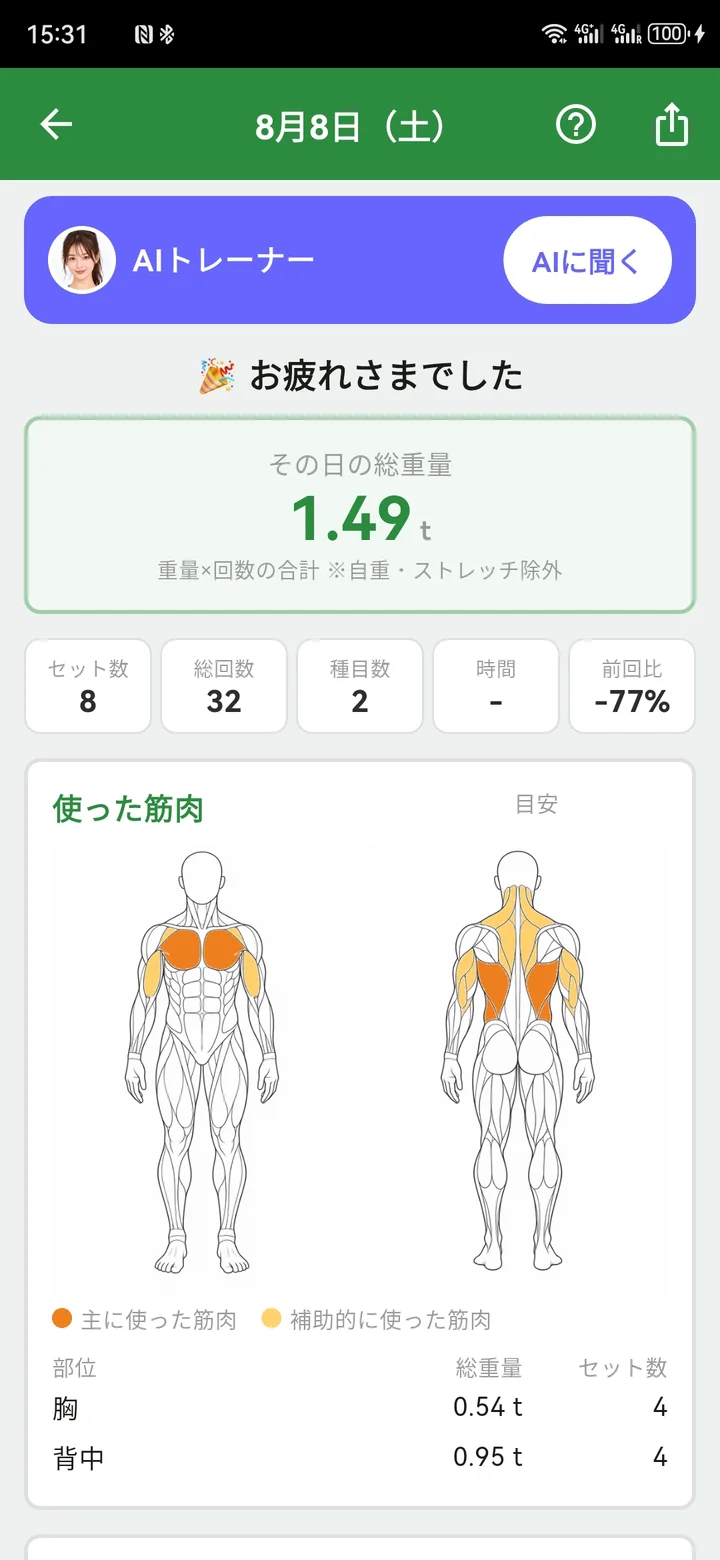
Real screens from the Japanese version of 2.6.0. These are static images; labels may differ by language.
Settings → Data & features → Import from screenshots. Choose images of a daily log including the date.
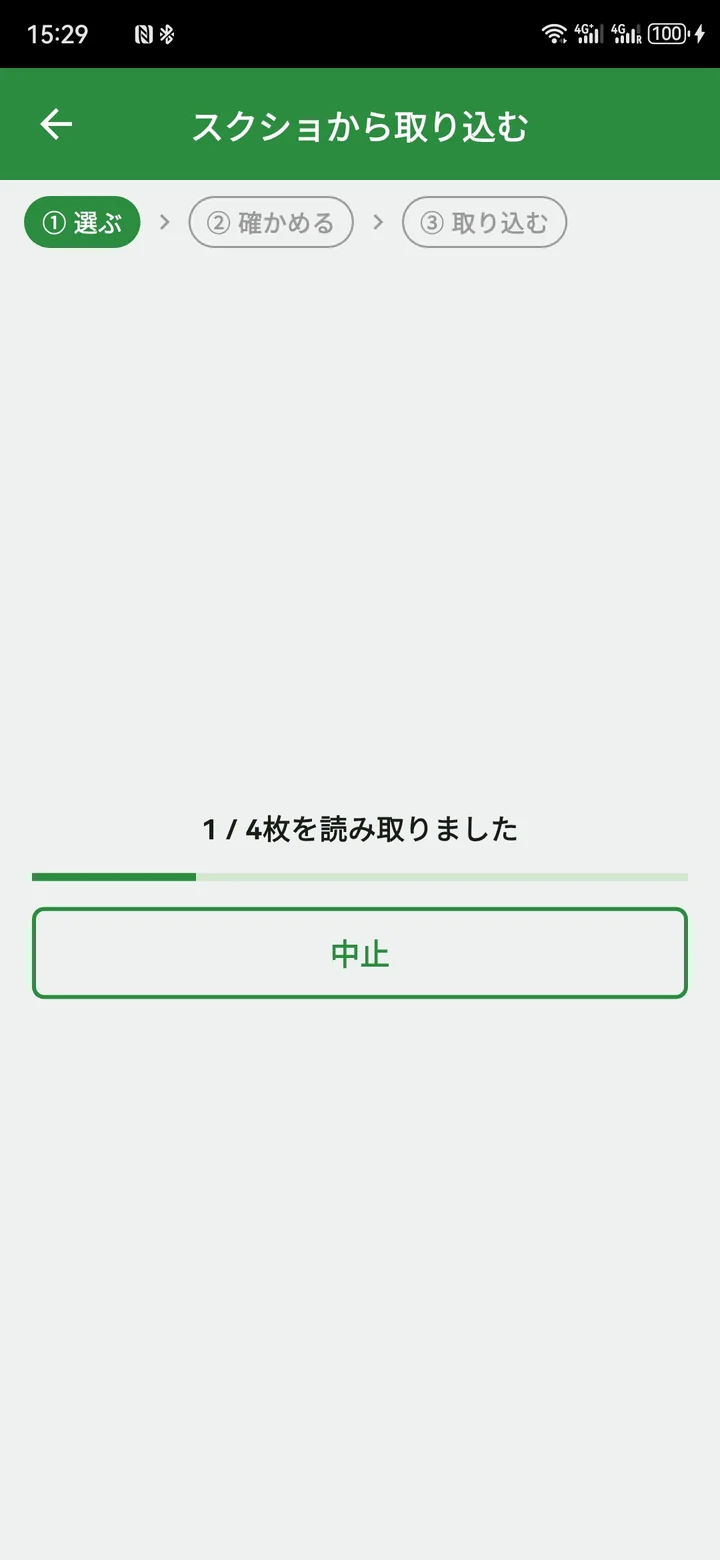
Images are organized by date. Check exercise matching, then open each day you want to import. Every day starts as Pending (未確認).
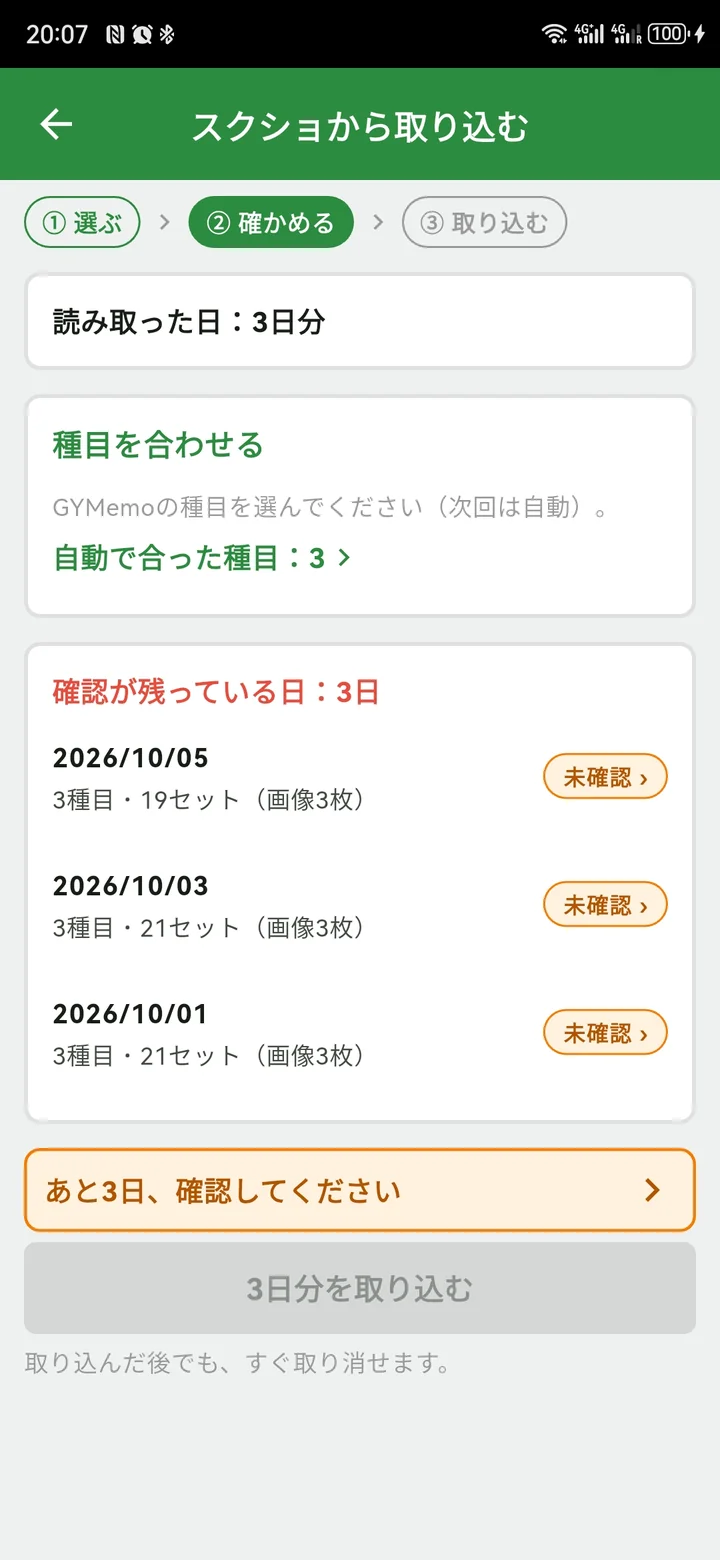
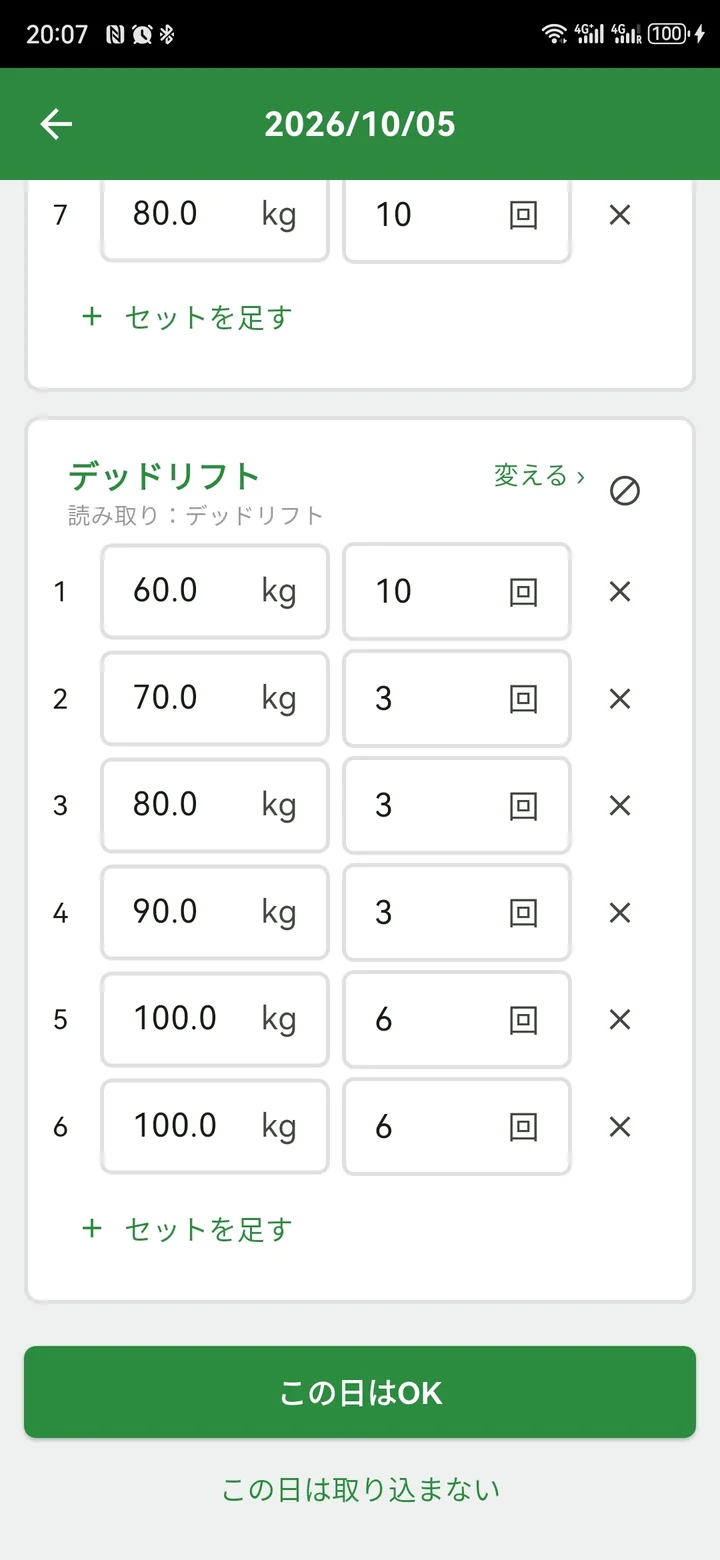
Review every day, make any corrections, then tap OK for this day. The day becomes Confirmed and the next pending day opens. You cannot import while pending days remain. For existing days, choose skip, add or overwrite.
Overwrite replaces your existing GYMemo records for that day. Skip is selected by default.
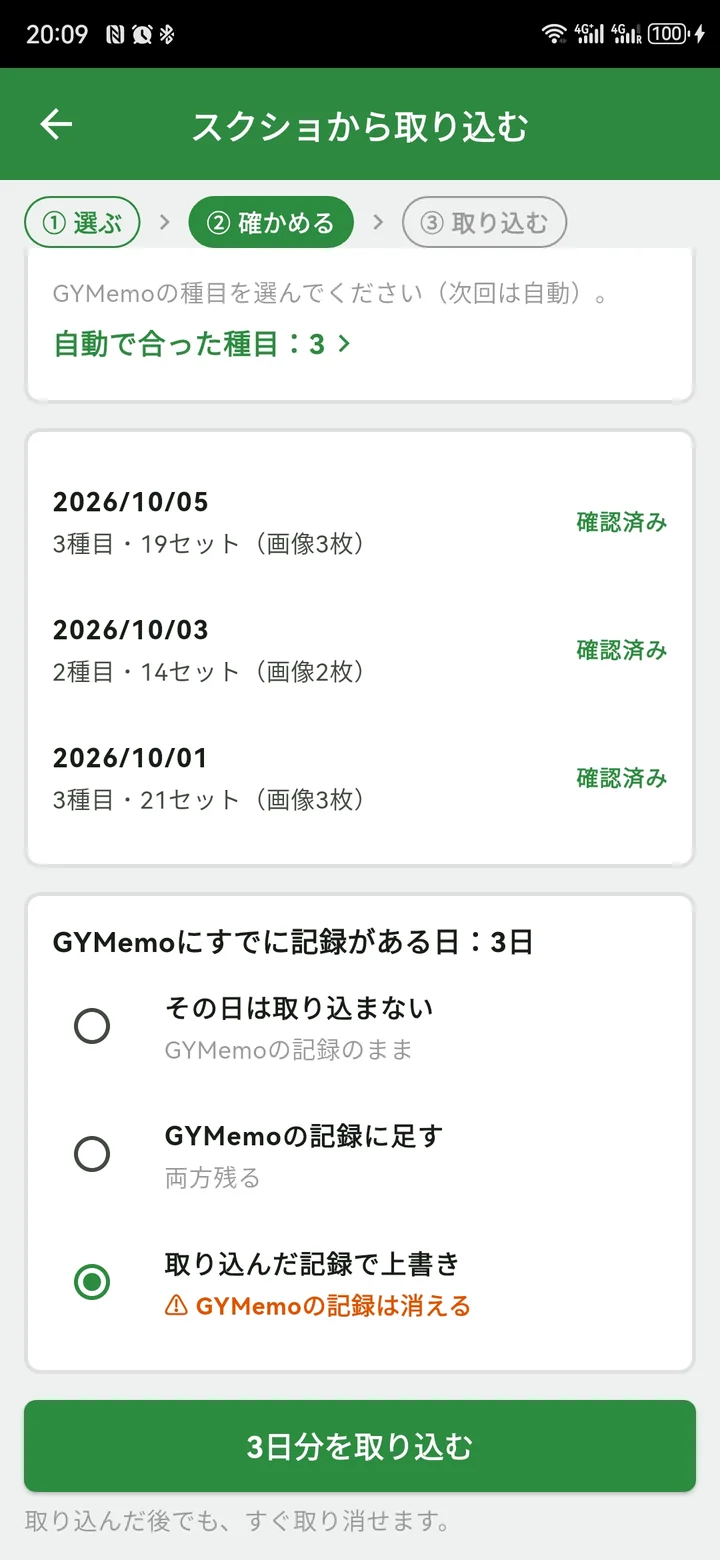
After importing, records appear in your diary, summaries and personal bests. Undo before closing the completion screen.
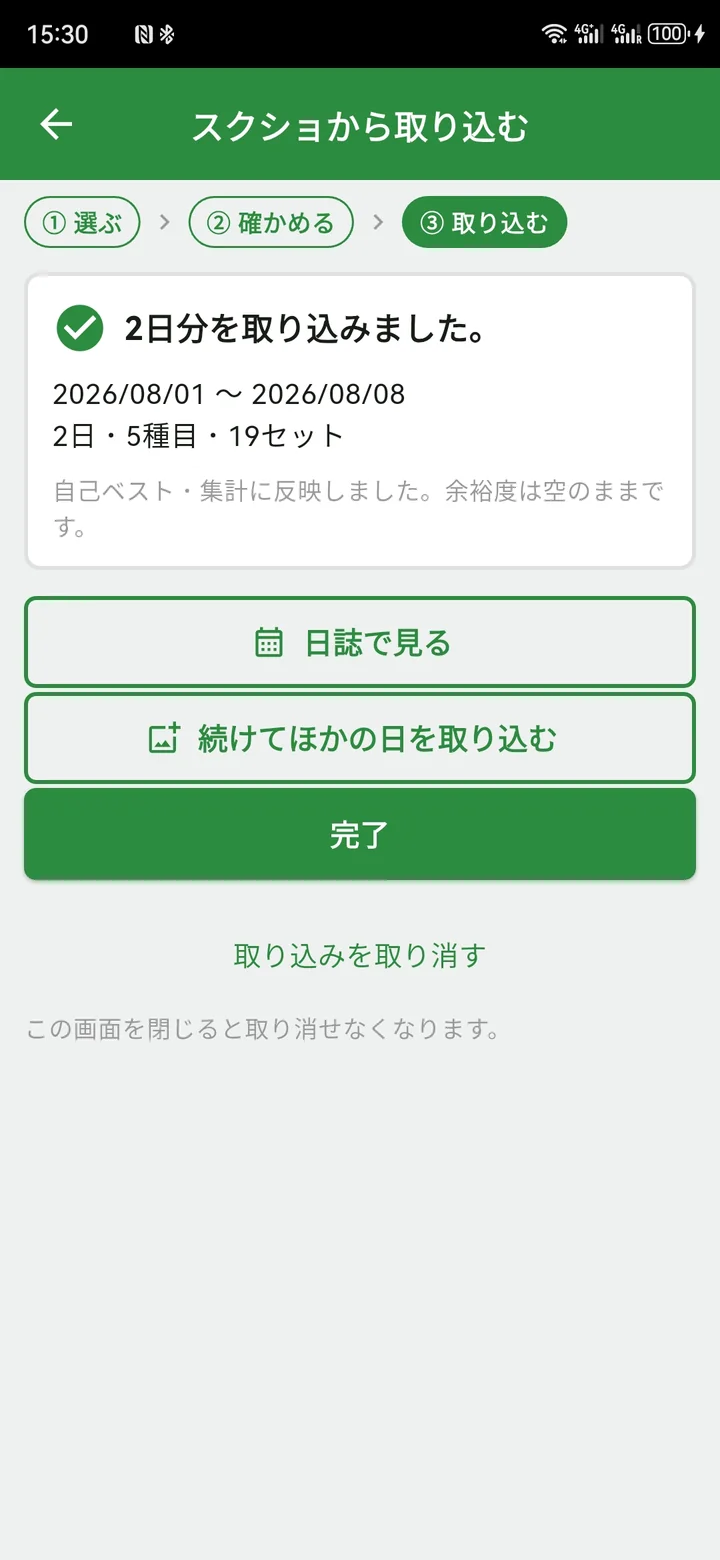
Check the result before importing other days. If you have many images, import them one month at a time. Select all images for the same day in the same batch; otherwise that date will count as an existing day next time.
Expand exercises and include their names and sets. For long logs, overlap screenshots so the last set in one also appears in the next.
Include every set without cutting off numbers. Missed sets will not be imported. Keep notification banners out of the way; do not crop or edit images.
Export workout CSV files from Hevy or Strong and choose the CSV selection button (Hevy / Strong).
Review and correct the result just as you would for screenshots.
Rows without reps, such as some cardio entries, are not imported.
FAQ
Daily log screens showing dates, exercise names, weights and reps are supported. Some apps or layouts may not be readable.
No. Images are read on your phone.
Yes. Screenshot import is available on the Free plan.
Up to 100. Import the rest in another batch. We recommend trying one day first. If you have many images, import them one month at a time. Select all images for the same day in the same batch; otherwise that date will count as an existing day next time.
Reading is not perfect, so open and review every day. Check orange fields and warning messages, make any corrections, then tap OK for this day to mark it Confirmed. You cannot import while pending days remain.
Choose it again in exercise matching, or tap the exercise name on the day review screen. That screen shows the GYMemo exercise name and the original name read from the image. Your selection is used automatically next time.
Check the unread images list. Retake the daily log from the top including the date and exercise names.
Choose skip, add or overwrite. Skip is the default. Overwrite replaces existing records for that day.
Yes, on the import completion screen. Undo is no longer available after you close that screen.
Effort ratings stay blank. Notes attached to sets in the other app are combined into the exercise notes.
Yes. iOS 15.5 or later is required.
How many images you can choose at once depends on your phone. Tap "Choose images" again to add more (up to 100 images in total).
When a name has been read from the image, choose the option at the top of the exercise selection screen to create it as your own exercise.
The next time you open "Import from screenshots", you can undo the previous import.